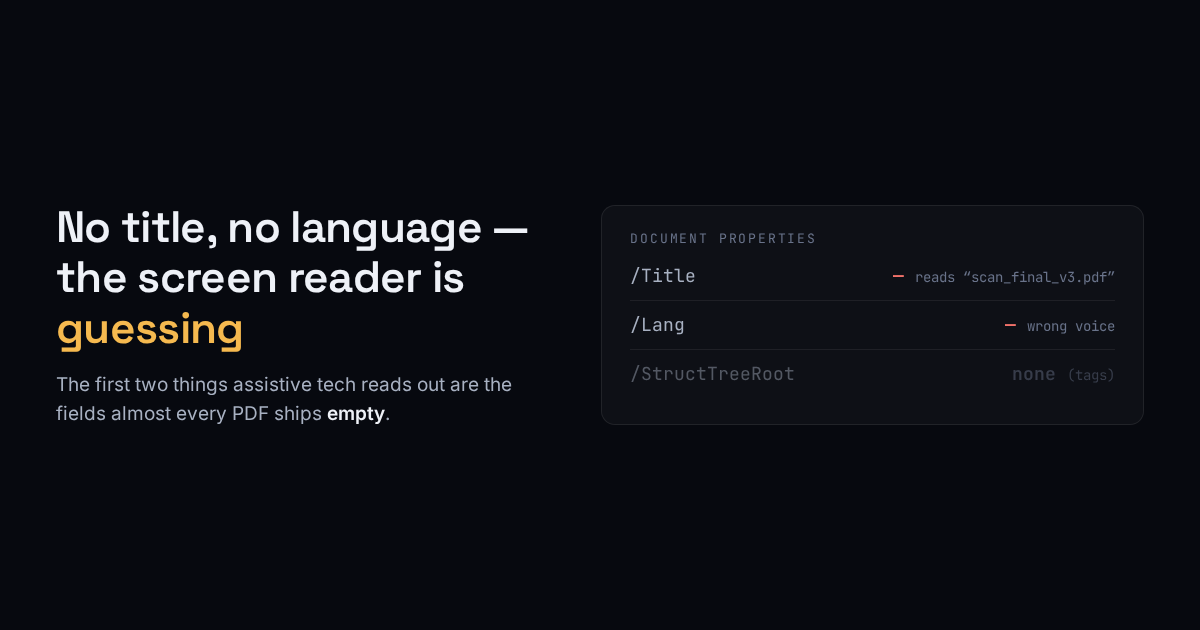
Open a PDF with a screen reader and the first thing it says is the document’s title. Not the heading on page one — the /Title stored in the file’s metadata. When that field is empty, which is the default almost every exporter ships, the reader announces the one string it does have: the filename. A grant application opens as “scan_final_v3.pdf.”
The second thing it does is pick a voice. A PDF carries a language code, /Lang, that tells the reader how to pronounce the words. With no language set, it uses its own default — so an English document read by a reader configured for French is pronounced as though the English were French, and a reader cannot tell you it is guessing. Both of these are one-line fixes, and both are almost always missing.
What actually gets read first
These two fields are not cosmetic. They are the opening two sentences of the document as a blind user receives it, before a single word of your content:
/Title— announced on open, and shown in the browser tab and the reader’s document list. Empty means the filename stands in, whatever it happens to be./Lang— selects pronunciation and voice. A document that mixes languages can mark spans, but the document-level default is the one that matters most and the one usually absent.
A third useful thing is navigation. A reader and most PDF viewers expose a document’s outline — the bookmark tree in the sidebar — as a way to jump between sections without arrowing through every line. A long PDF with no outline is a wall with no doors. If the document already has real headings, an outline can be built from them.
Our $1 PDF accessibility fixer does exactly these three: it sets a title, sets a language, builds a contents outline from the headings it finds, and returns a short report of what it changed and what it could not. It is the fast 80%: the metadata that decides how the file is announced and navigated.
The part a title and a language do not fix
Here is the honest limit, and it is the whole reason “accessible PDF” is a harder phrase than it sounds. The thing that makes a PDF genuinely readable in order — so the reader follows the text as a human eye would, through columns and around images, and announces alt text for figures — is a tag tree: a hidden structural layer that says “this is a heading, this is a paragraph, this is a table row, read them in this sequence.” PDF/UA and WCAG are built on it.
Our tool does not add tags, and says so. Setting a title and a language on an untagged PDF is a real improvement — the file opens correctly and navigates — but it is not a compliant, fully tagged document, and we will not call it one. If you are shipping something that has to meet a legal accessibility standard, the metadata is step one, not the finish line, and the tagging is a separate, heavier job.
How to check your own PDF in a minute
You do not need our tool to find out where you stand. Open the file’s document properties in any viewer and read two lines: the Title field and the Language field. If the title is blank or is a filename, a screen reader is announcing that filename to every user who opens it. If the language is blank, it is guessing the pronunciation. Those two are free to fix and they change the first thing every assistive user hears.
Then decide honestly whether you need the rest. A handout, a menu, an internal memo: title and language and an outline are a genuine, proportionate fix. A public-sector form or anything under an accessibility mandate: budget for real tagging, and treat the metadata as the easy first mile of a longer road.